Showing posts with label social media tools. Show all posts

Thursday, 7 April 2016

6 Productivity Tools for Twitter

Are you struggling to keep up with your Twitter activities?
Looking for a way to streamline your Twitter marketing?
The right productivity tools will help you manage your Twitter marketing more effectively and free up your time for other tasks.
In this article you’ll discover six tools and techniques that will boost your productivity on Twitter.

#1: Manage Twitter Messages With AgoraPulse

Keeping on top of your Twitter mentions and messages can take a huge amount of time each day. According to research from Brandwatch, retail brands receive an average of 821 mentions per day on Twitter, but only manage to respond to 40 of them.
You can do better than that by using a social media management tool like AgoraPulse.
It allows you to display your mentions, direct messages, and monitoring alerts in a social inbox so you can respond as you would with an email. When you review or reply to messages, they’re archived, which makes it easy to see which messages you’ve dealt with.
The social inbox for your Twitter account is split into an Inbox tab for your incoming mentions and messages and a Monitoring tab for retweets and search queries.
agora pulse manager
Whenever you reply to or review a message, it’s highlighted and archived. This feature is particularly useful to archive low-value or spammy direct messages.
Have you ever received one of those automated “thank you for following me” direct messages or something similar? With the Direct Messages filter, you can quickly select all direct messages that don’t need a reply and review them in one go, which is a huge time-saver.
agora pulse twitter direct message
Once you review or reply to all of your mentions, you’ll get that lovely inbox zero feeling.
agora pulse inbox zero
Go to the Monitoring tab to view all of your retweets and searches. This tab is for less urgent messages, while the Inbox focuses on the most actionable messages.
Select the Type filter to show only your recent searches or retweets. You can then reply to or like them on an individual basis, or via a bulk review if no action needs to be taken.
agora pulse monitoring filter
If you work with a team or have a virtual assistant, you can assign individual messages to team members. To do so, view the message, click the Assign button, and select the relevant team member. You can easily see which messages have been assigned to which team members.
agora pulse assign team member
If you have a social media team, using a social media management tool is important from a security standpoint. With AgoraPulse, you’ll get full control over your team members and avoid having to share your Twitter password.
Set aside two or three fixed times every day to attend to your Twitter engagement. Make sure you cap the time for these sessions (for example 10-15 minutes) so you can spend the rest of your day focusing on other areas of your business.
AgoraPulse also integrates with Facebook and Instagram and offers reports and publishing features.

#2: Automate Blog Content Shares With missinglettr

When you post an article to your blog, how many times do you share it on Twitter? It’s unusual for people to send just one tweet out when they publish blog content.
If you want to maximize the engagement potential for your blog posts, use a tool like missinglettr to set up a drip marketing campaign for them. It allows you to publicize each individual article regularly via Twitter over the course of a year.
To get started, set up your free account and connect your blog’s RSS feed. Once you do that, missinglettr will start checking for new blog posts. When it detects a new article, it analyzes the content and creates a Twitter marketing campaign for that article for the year.
The campaign consists of a series of tweets linking to the article and can include summaries, quotes, images, and a call to action. missinglettr will notify you when the campaign is ready so you can review it.
missinglettr review
Click the Review link to review the campaign schedule for the article. At the top of the screen, you’ll see the number of tweet suggestions; images created, found, or extracted; hashtag suggestions; and number of blocked words.
Look at the hashtag suggestions to make sure they’ll work well for your article. You can add, delete, and reorder them as needed.
missinglettr manage hashtags
Next, go through the suggested tweets and approve, edit, or delete them. If you don’t like one of the suggested tweets, refresh the text or image and missinglettr will generate another suggestion.
missinglettr edit suggested tweets
Once you’ve reviewed and accepted the tweets for the campaign, missinglettr will schedule them over the course of the next year. You can view all of the upcoming tweets in the schedule.
The types of suggested tweets will vary based on your article, but they’ll include some of the following:
  • “Check out my new article,” which is posted immediately after you approve the campaign
  • A quote from part of the article, which is posted three days later
  • “In case you missed it, here’s an article I posted last week,” which is a reminder tweet posted the following week
  • Various quotes, images, and snippets posted over the year
  • “A year ago I published,” which is posted on the first anniversary of your article
missinglettr has both paid and free plans available.

#3: Discover Missing Website Mentions With IFTTT

Twitter does a great job of letting you know when someone mentions you in a tweet. However, it doesn’t notify you when someone mentions your website without mentioning your Twitter username. You might be surprised by how many hidden mentions you have!
Here’s how to find missing website mentions with Twitter Search and IFTTT.
Do a Twitter Search
In the Twitter search box, enter your web address (including the http:// or https://), followed by a space, a dash (-), and your Twitter username. For example, for Social Media Examiner you’d enter: http://socialmediaexaminer.com/ -smexaminer
twitter search
When you add a dash before a word, that word is excluded from the search. In this case, you’re excluding your Twitter username so the results don’t include mentions or replies. There’s no point in including mentions in the search because you’ve already been notified of them in Notifications.
After you run your search, you’ll see tweets that link to your website but don’t mention your company’s Twitter handle.
website mentions
Review your search results to see who has tweeted links to your website without mentioning your Twitter handle.
Now you know what people are tweeting about your website and you can start engaging with users to generate leads and opportunities to build relationships.
Set Up an Email Notification
Manually searching Twitter every day for missing website mentions can be time-consuming. With IFTTT, you can set up a recipe so you’ll automatically receive an email notification when someone tweets a link to your website.
To get started, set up a free IFTTT account. Then click on My Recipes, followed by the Create a Recipe button.
ifttt create recipe
First you’re going to create the trigger, which is when there’s a new search result for your website mention in Twitter. To do this, click the This link.
ifttt trigger channel
First choose the trigger channel for your recipe.
Then choose Twitter for the trigger channelStart typing Twitter in the search box and click the Twitter icon when it appears.
On the next page, select the New Tweet from Search option for the trigger.
Now it’s time to use the Twitter search query you used above: Enter your website URL, followed by space, a dash, and then your Twitter username. When you’re finished, click the Create Trigger button.
ifttt trigger
The next step is to create the action for the recipe. This is the part of the recipe that will send the email to you. Click on the That link in the “If This Then That” text.
Select Mail for the action channel by typing “mail” in the search box and then clicking the Email icon.
ifttt action channel
Choose the action channel for your recipe.
On the next screen, select Send Me an Email for the action.
Now, you’ll compose the email that’s triggered when someone links to your website in a tweet. You can choose the wording for the subject and body of the email. Be sure toinclude the username of the author of the tweet, the tweet text, and the link to the tweet itself (so you can click on that link to reply).
To add this information, click on the blue flask icon to the right of each field. Here’s an example.
ifttt complete action fields
When you’re finished, click Create Action. The next screen shows your finished recipe. Once you click Create Recipe, your alert service is set up.
If you receive a lot of these alerts, it’s a good idea to set up a filter for these messages in your email app. You can move these alerts automatically to a special folder so that they don’t clog up your inbox. At set times each day, you can go through your website alerts and respond to them quickly and easily.

#4: Grow and Manage Your Following With ManageFlitter

As your Twitter community grows, it takes more of your time to stay on top of it. ManageFlitteris a tool that makes it easier to manage your Twitter followers, friends, and listsUse the Manage Unfollow and Follow options to quickly identify inactive Twitter accounts and accounts that don’t follow you back.
ManageFlitter’s Power Mode is a Twitter search tool with powerful filters. It helps you find highly relevant and targeted accounts to follow. You can then follow them or add them to a Twitter list. It’s likely that they’ll follow you back, assuming you’re sharing high-quality and relevant content.
Although ManageFlitter has a decent free plan, the Power Mode is available only with the $12/month pro plan (or the business plan). The paid plans give you the ability to block Twitter accounts, no daily limits on unfollows, never unfollow lists, and integration with Twitter lists.
Find Relevant Accounts With Power Mode
Once you’ve signed up for a paid account, go to Power Mode and click Create Filter.
manageflitter power mode
A useful tactic is to look at the accounts that an influential Twitter user in your industry is following or look at the accounts that follow that user.
Suppose that you want to analyze the accounts that a particular user follows. Select Users You’re Not Following and Users Not Following You for the data sourceType in the account’s username in the Follow By field and select how many accounts you want to searchClick Show Matches to see the results.
manageflitter power mode data source
Narrow Your Search Results
Once your search results are displayed, you can use filters to narrow the results. Here are some of the filters you may want to use:
  • Active: There are a large number of inactive accounts on Twitter. This filter only returns accounts that have tweeted at least once in the past 30 days.
  • Profile Image: View accounts that have set a profile image.
  • English: See accounts whose last tweet was in English.
  • Unprotected: Display accounts that aren’t private.
manageflitter optional criteria
If you want to narrow the results further, here are some additional filters you can choose:
  • Not in Never Unfollow Group: Exclude accounts you never want to follow.
  • Account Age: Choose accounts that are at least 90 days old, for example.
  • Spam Probability: Reduce the likelihood of following spammy accounts.
  • You Have Never Followed
  • Possibly Offensive: Ignore accounts that sometimes use profanity, which is useful if you need to be sensitive with the accounts you follow. You can also edit the list of offensive words in the dashboard.
  • Times Listed: See the number of Twitter lists a person has been added to. This can be a good indicator of how respected they are. This metric is not as easy to fake as the number of followers.
  • Influence: ManageFlitter uses an algorithm to determine how influential the users are. Select this filter to return only users that ManageFlitter thinks are influential.
Once you’ve created your Power Mode filter, you can save it to reuse later.
Choose Accounts to Follow
Now review the accounts to see if you want to follow themClick the Overview button and then click and drag over the Twitter profile pictures to bulk-select accounts.
manageflitter select accounts
When you’re done, click the Follow button to add these accounts to your process queue.
Keep in mind that ManageFlitter will not automatically follow or unfollow Twitter accounts. Some people are disappointed when they hear this. However, there’s a good reason for it. Twitter disallows automatic following and unfollowing.
It’s a good idea to read the Twitter Rules and the Automation Rules on Automated Following and Unfollowing to be safe.
Once you’ve added accounts to your process queue, ManageFlitter makes it easy to follow them. Just hover your pointer over the top Follow button and clickClick the Cancel button to remove an account from the queue.
If you don’t want to do this yourself, ManageFlitter can follow these accounts for you with their Remote Management option. They use real human beings to do the clicking for you, so there’s no automation involved.
manageflitter process queue
It’s important that you don’t follow too many people in one go. Twitter has a technicalfollow limit of 1,000 accounts each day, but really that’s the upper limit. You’re better off following significantly fewer accounts than that. It’s a good idea to know the other Twitter limitsas well. Twitter can suspend accounts that it feels are breaking its rules.
Regularly Audit the Accounts You’re Following
You’ll also want to use ManageFlitter to keep an eye on the accounts you’re following. You could do a monthly or biweekly audit and then unfollow accounts that are or have become irrelevant, such as inactive accounts, high spam value, don’t follow you back, and aren’t in your never unfollow list.
Make sure you put high-value accounts you never want to unfollow in the Never Unfollow list. You can add your high-value Twitter accounts to a Twitter list, and use that Twitter list to update the Never Unfollow list in ManageFlitter.

#5: Cross-post From Google+ With Friends+Me

There have been many changes to Google+ recently, and it’s still a bit of a niche social network. However, there are clear benefits to posting on Google+, such as being added to Google’s search listings quickly.
Friends+Me is a tool that lets you get the benefits from posting on Google+ first and then cross-post intelligently to your other social networks, including Twitter. It transforms Google+ into a social media scheduling tool.
When you post on Google+, Friends+Me repurposes that content and reposts it to your other networks. You have the option to post right away, after a delay, or on a predefined schedule. Friends+Me only reposts public posts from your Google+ profile or page.
Get Started
To get started, create a Friends+Me account. You can start with the free plan. Next, you need to connect your Google+ profile or page as your source account. This is where you’ll post your updates. After connecting Google+, connect Twitter as one of your destination accounts.
friendsplusme new account
Go to your destination Twitter account, and click on Setup in the Friends+Me dashboard. Now you have the option to link back to either the original Google+ post or the article you shared. If you want to boost awareness and engagement to your Google+ profile or page, click Grow to link back to the original post on Google+Click Mirror to link back to the shared article itself.
friendsplusme twitter setup
Under Advanced Settings, you can enable a handy feature that limits the length of the reposted tweet to 110 characters, which provides enough room for your Twitter username when people retweet you. Click the Disabled button to toggle this feature on.
You’ll also want to go to the Reposts Routing section to set your default destination accounts. These are the social networks to which Friends+Me will always repost your Google+ posts. In the following image, I’ve added my Twitter and LinkedIn accounts.
friendsplusme reposts routing
Now you’re good to go. You can start writing your content on Google+ or share articles and they’ll get reposted to Twitter.
Take Control With Hashtags
In practice, you may not want to repost every public Google+ post to your Twitter account.Add the special “no share” hashtag #ns to your Google+ post to stop Friends+Me from reposting it. When Friends+Me sees a post with this hashtag, it will ignore it.
For even more control, you can set up control hashtags that tell Friends+Me which networks to repost to. For example, use #fb to get Friends+Me to repost to Facebook, and use #tfl to repost to Twitter, Facebook, and LinkedIn. You can find out more about control hashtag groups in this Introduction to Friends+Me.
friendsplusme hashtag groups
Cross-post to Your Other Networks
Because you only have 140 characters to play with on Twitter, Friends+Me just uses the title of your Google+ post and the link. It also extracts the image from the article and adds that to your tweet, making it much more visual.
When reposting to Facebook, LinkedIn, and other long-form networks, Friends+Me reposts the entire text. It understands the different mechanisms of each network and posts intelligently.
Here’s an example of a post composed on Google+.
friendsplusme post twitter
And this is how the post looked on Twitter.
friendsplusme tweet
When cross-posting on Twitter, Friends+Me includes the title of your Google+ post, the link, and the image.

#6: Find Questions to Answer With Zapier

Answering questions on social media can help you build authority and credibility in your industry, but with so much noise, it’s not easy to spot relevant questions to answer.
Fortunately, the tool Zapier (which is similar to IFTTT) can make that easier for you. You can use it to set up an email alert to notify you automatically when someone on one of your Twitter lists asks a question. You can also exclude replies and tweets including links.
To get started, create a Zapier account. There are both free and paid plans available. After you sign in, click Make a New Zap (Zapier recipes are called “zaps”).
Next, you want to select Twitter as your trigger appType “twitter” in the search box, and click the Twitter icon when it appears.
zapier twitter
On the following page, select Tweet in List so you’ll be notified when someone on one of your lists tweets.
zapier trigger
Now you need to connect your Twitter account or select one you’ve already added to Zapier.
zapier connect twitter
Next, click the down arrow and choose the Twitter list you want to monitorClick Fetch & Continue to let Zapier test that the trigger is working. It will fetch a tweet from your Twitter list. Click Continue once the test is complete.
zapier choose list
Now you want to create a filter so only tweets with questions are returned. To do this,click the plus icon on the left and then click Filter.
zapier add filter button
The filter gives you a lot of options, but it’s easier than it looks. First, you want to set up a filter to check that the text of the tweet contains a question mark. To do that, select Text in the first column, choose Contains in the second column, and type a question mark in the third column.
zapier add filter
If you also want to exclude tweets that contain linksclick the +AND button to add another filter, and from left to right, select Text, Does Not Contain, and add “http.”Finally, you can exclude replies by only allowing tweets that do not start with “@.”
Click Continue when you’re finished adding filters. You may see a warning that the zap wouldn’t have run using the previous test data. Just ignore this. It’s likely that there weren’t any tweets with question marks and no links in the previous test.
Now it’s time to create your action, which is to send new search results by emailType Email in the search box and then choose Email by Zapier from the drop-down list.
zapier action email
On the next page, select Send Outbound Email for the action and click Save & Continue.
Now you’re ready to compose your email alertEnter your email address in the To field and add the subject and bodyClick the Insert a Field button to the right of the field to add the full name of the person tweeting. You’ll also want to add the tweet text and the link to the tweet (URL) in the body.
zapier create email
When you’re finished, click Save & Continue. Now just wait for your email alerts to come in.
If you start receiving a lot of email alerts, it’s a good idea set up a filter in your email program to automatically move your question alerts to a specific folder or tag. Here’s an example of an email alert that was filtered in Gmail.
zapier email alert
When you find a question that you want to respond to, just click on the link and you can reply via Twitter.
That’s just one example of an email alert you can set up, but there are so many other possibilities. You can search tweets containing keywords, use sentiment analysis to spot angry customers, and much more!
In Conclusion
Learning how to use and customize these tools can take a bit of time initially. However, once they’re in place, you’ll rarely need to go back to change anything.

What do you think? Have you tried some of these tools? What Twitter tools have improved your productivity? 
I’d love to hear more in the comments below!
To view the original article Click Here

Tuesday, 22 March 2016

Four Social Media Game-Changers to be on the Lookout For

Four Social Media Trends to Look out For
This is a guest contribution from Raeleen Hooper.
Once upon a time, people feared public speaking above all things – even death. But it seems we have a new contender.
According to a survey of 1000 people by UK internet security firm SecurEnvoy, two-thirds of people are afflicted by “nomophobia” – the mortal fear of having no mobile phone.
This dependency on mobile technology is largely driven by our addiction to social media networking, underpinning the single biggest trend affecting marketers in the coming year.
The mobile social space offers rich pickings for small business owners as it represents a huge opportunity to stand out from your competition in a playing field where budgets are tight and expertise may be limited.
Here are four key trends that your blog or business should consider using to gain a competitive edge:

1. Mobilise 

The trend: Internet access via mobile has overtaken PCs. According to research by Neilsen, US adults spent on average 34 hours per month using mobile internet on smartphones compared with 27 hours on the PC. This supports Australian figures, with the Australian Communications and Media Authority (ACMA) finding that one in five Australians now access the internet only via smartphone.
For example, Australian print, design and website franchise network, Snap Franchising Ltd, has a desktop heavy audience with main traffic coming from the business to business environment, however it still receives approximately 30% of its traffic from mobile devices.

Top tool

  • Facebook lead ads create a seamless experience across mobile devices by enabling customers to sign up to lists without leaving the platform. For example, a retail store can use lead ads to find people who want to receive emails about their latest offers and products. This feature also lets you customise call to action buttons and data such as location, age, gender and phone number, taken directly from the users Facebook profile and auto-filled to the form. 

2. Get Appy 

The trend: Facebook, Twitter and LinkedIn continue to be the most influential social media apps, and audiences will be corralled onto these platforms via mobile apps in a way that doesn’t happen in the more free-range PC environment.

Top tools

  • Facebook’s accurate targeting lets you advertise to a highly defined audience of only people who are likely to be interested in your product. When the right people see the right message at the right time, the advertising tends to be more effective. This has the potential to increase RIO on advertising as well.
  • LinkedIn allows you to become your own publisher and share thought leadership pieces in the B2B space.
  • Twitter is now in the video space. The promoted video function allows you to effectively reach targeted and engaged users. It is easy for a business to upload and distribute video on Twitter, and measure the reach and effectiveness of their content.
Within businesses such as Snap franchising, there are certain rules and boundaries that need to be adhered to. For example, a franchise owner is not able to advertise outside of their franchise areas. Therefore social media has enabled Snap franchise owners to specifically target their franchising area online, which is something that has been hard to do in the past.

3. Stalk like a tiger 

The trend: Marketers will have more capacity than ever to stalk and re-stalk until users who are most likely to convert in a subsequent session.
Top tool
  • Google Analytics has released Smart Lists, which identifies the people visiting your website who are most likely to buy from you. The tool allows you to conduct sharply targeted remarketing, for example, a small business can use Smart Lists to create unique email marketing lists based on the customer stage of engagement or behaviour patterns. This is also a useful tool if you are new to using remarketing, as it is a process that is often mismanaged or misunderstood. Additionally, unlike static lists, which require constant updating, smart lists continuously refresh based on your business activity. 

4. Give it to me, baby!

The trend: In the age of Snapchat and Periscope, when audiences can gain instant access to deeply personal micro-moments in the lives of others, people are becoming more voyeuristic than ever – and they want instant gratification like never before. You’ll need to create content on your existing platforms that satisfies this need.
As a small business owner, time is your enemy. Don’t spread yourself too thin by trying to open pages on every new platform just to get into the instant broadcasting game.  Take advantage of new features available on your existing platforms to make more effective use of them. For example, Facebook has just made its livestreaming feature available to all verified users, allowing you to connect with your followers in real time.
Top tool
  • According to comScore, 64 percent of consumers are more likely to purchase a product after watching a video. So now is the time to make a video and start connecting with your audience. There are oodles of apps you can use to do a quick trim or add titles and music. Try VidTrim or Magisto for free, or grab a paid option like Cinefy.

Campaign ideas

One of the biggest developments is the cry for authenticity. People are weary of slick slogans and over-Photoshopped images. They want you to make an effort to understand their frustrations, add value to their lives and provide them with worthwhile solutions.
Social media marketing is the perfect platform for this style of marketing, so the number one thing you can do to cut through the noise is add value.
Give your clients information that genuinely helps them with issues they are dealing with in their lives. Then, when you have built goodwill, you will be in a position to provide a solution to those issues that revolves around your product or service (delivered with a compelling offer).
Slideshare is one of the most shared and engaging mediums for Snap and offers the audience solutions in quick and easily digestible format such as tips, hints and top lists. It aids in amplification as people are open to receiving bite sized chunks of information and remains one of Snap’s most shared and engaged medium of content. With its association with LinkedIn, it makes B2B marketing a little easier when it comes to capturing the attention of small business owners.
With engaging with customers becoming increasingly important, how do you plan to use social media?
To view the original article Click Here

Saturday, 5 March 2016

9 Best Tools to Manage Social Media Posts

best-tools-to-manage-social-media-posts
Savvy social media marketers are a force to be reckoned with.
We’re always tweeting, posting, writing, sharing, creating, curating and engaging.
Managing communities across many social media platforms is a fundamental component of our work.
It's an art to master and maintain a consistent presence on all those different platforms. And it takes time to build our communities.
Sure, there’s a strategy behind our work. There’s also a skill that requires creativity and deliberate effort at any given time.
What’s behind our success as social media professionals?
The key is finding the best tools to manage social media posts. We use those tools to craft a workflow that's realistic and sensible.
Identifying the best tools enables us to optimize, automate, and rock it in a seamless manner.
In recent years, social media management tools have morphed from publishing and scheduling -- to providing sophisticated campaign information.
This is indicative of how important social media is in the digital marketing sphere.
So what's the tastiest recipe of software, dashboards, scheduling tools, and publishing tools? How do we use those tools to juggle multiple accounts?
Here’s my list of the 9 best tools. I use these tools to manage social media posts and content for clients that range from startups to cities.
There's something here for everyone. We'll cover classic tools, popular tools, free tools, paid tools and platform specific tools. 

9 Best Tools to Manage Social Media Posts

1. Hootsuite

Hootsuite is a tool that enables anyone to manage almost all aspects of social media posts. This tool offers social media managers the ability to:
  • Publish and schedule content, including auto-schedule
  • Research and identify engaging content
  • Engage with community  
  • View many aspects of engagement with multi stream view
  • Analyze progress and analytics

What's Hootsuite missing?

Social media managers need to create visuals. Hootsuite doesn’t offer that option within the platform. For me, Canva is critical.
Pro Tip: Be sure to integrate the pic.twitter option to enable social media visuals to look native in the Twitter stream.

More reasons I like Hootsuite:

  • Excellent customer support
  • Their #Hootchat and the associated community.
  • Their UTM analytics option
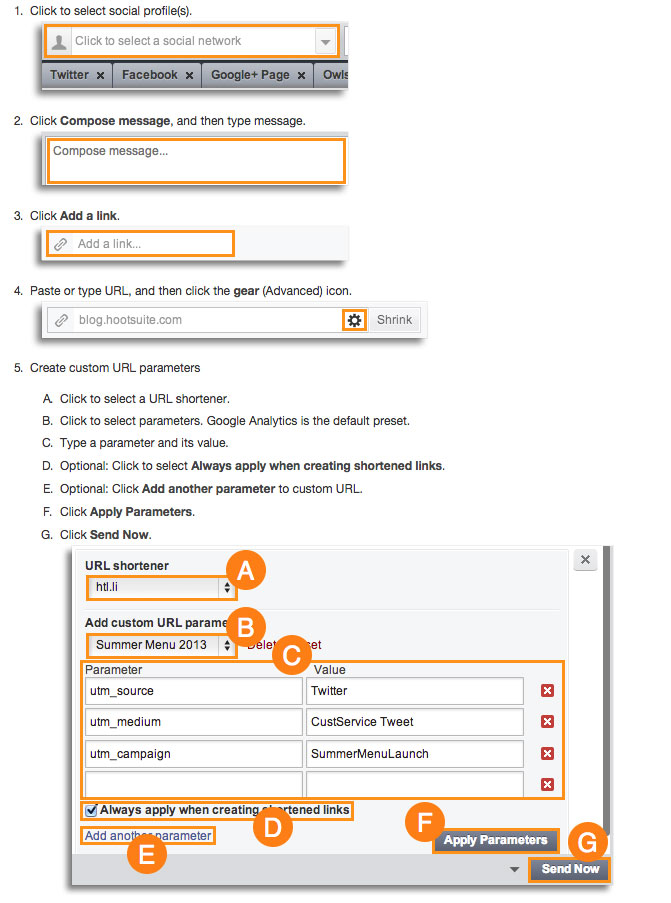
With the UTM analytics feature, Hootsuite synchronizes with Google Analytics.
best-tools-to-manage-social-media-posts
(Image source: Hootsuite)
An important feature on Hootsuite is the bulk publisher tab. It allows a calendar view of scheduled updates.
You can bulk schedule content by uploading a .csv file to Hootsuite. Add your social messages along with the dates and times.
You can use HootBulk (the must-have pro version of Hootsuite) for a simpler bulk experience. 
Hootsuite platforms Include:
  • Twitter
  • Facebook
  • Google+ (profiles, not pages or communities)
  • LinkedIn
  • YouTube
  • Instagram
  • Foursquare
  • WordPress
  • Mixi (Japanese social networking service)
Unlike many social media management platforms -- Hootsuite is mature. It's been around since 2008. They’ve developed, tested and improved along the way.
All in all, Hootsuite is one of the best tools to manage social media posts.

2. Post Planner

Efficiency is key in social media management.
As a busy social media professional, I look for this when deciding on the best tools to manage social media posts. Efficient is the word I think of when I use Post Planner.
Originally, Post Planner was an app optimized for Facebook. It helped brands deliver the most relevant content to their communities.
These days, Post Planner is a tool for finding, planning and posting content for Facebook and Twitter. There's also a light Instagram and Pinterest integration.
The Canva integration within Post Planner makes the entire process seamless and efficient. This makes Post Planner an absolute winner in my book -- especially when juggling clients.
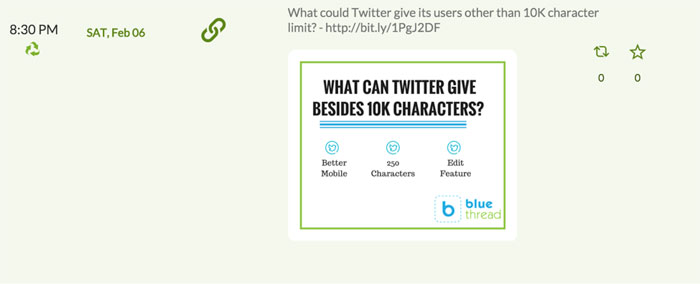
Here's an example. Recently I wrote a post about Twitter possibly moving to 10,000 characters. (don't get me started)
First, I put the link into their scheduling tool. Rather than use the default image on the blog, I decided to create one on Canva. I was able to do that without leaving Post Planner.
best-tools-to-manage-social-media-posts-2
Boom! I had a piece of optimized, branded content -- scheduled and automated.

A few more things I like about Post Planner:

  • I can identify trending content for sharing
  • I can recycle content for optimal sharing (great for evergreen blog content)
  • I can do a competitive analysis by searching audience-tested content from other Facebook, Twitter and Instagram accounts. (I use this to see if I can repurpose or recreate that same type of proven content)
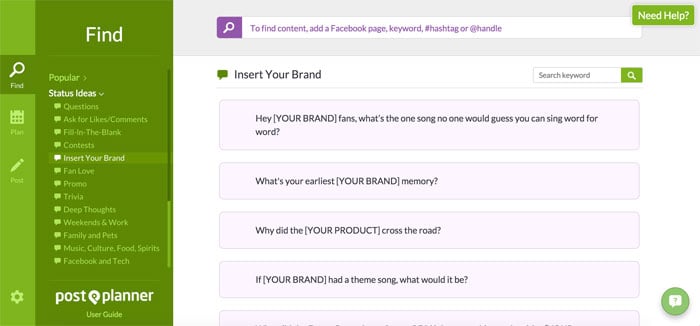
  • I can find suggested status update ideas (15,000+)
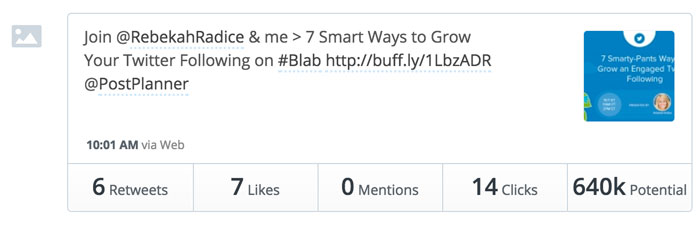
  • I like the analytics (they make data interpretation easy)
best-tools-to-manage-social-media-posts-post-planner

What's the downside of Post Planner?

It doesn’t allow for engaging with users or being able to follow a stream from within the platform.
Savvy social media marketers know that there's a gray area in which some of these tools overlap.
One social media expert, Tabitha Philen, combines the features of Hootsuite and Post Planner. She explained to her audience why this is important:

3. Buffer

Buffer's simple design and UX make scheduling, posting and collaborating an intuitive process. Simplicity is Buffer’s value prop in the industry.  
Social media platforms that can connect to Buffer:
  • Facebook
  • Twitter
  • LinkedIn
  • Pinterest
  • Google+
What Buffer and Post Planner don’t offer is Instagram scheduling. That’s a clear advantage for Hootsuite.
But let's face it -- the Instagram scheduling feature within Hootsuite is more of a pre-scheduling and reminder service. I’ll be covering other Instagram scheduling solutions later in this post. 
Buffer offers a branded visual solution with Pablo. But it’s not nearly as robust as the Canva integration within Post Planner.
For Pablo to work well, the social media manager needs to know what size images work best for each platform.
The interface within Buffer is clean, simple and easy to understand at a glance. Again, simplicity is their strong point.
best-tools-to-manage-social-media-posts-buffer

What are the real differences between the top 3?

Like we've already mentioned, social media managers often overlap their tools. They use features from one to optimize their results with another.
A broader comparison between these 3 social media management tools would be:
Hootsuite focuses on the medium
Hootsuite looks at the entire process of social media management -- from scheduling to engaging to direct messaging. Hootsuite dabbles in it all.
Post Planner focuses on the content
While Post Planner is also a scheduler, it was built for engagement. And the easiest way to get more engagement is to post proven, audience-tested content.
Buffer focuses on the scheduling
There's no doubt that Buffer is a great social media management tool. It enables a quick and simple way to ‘top off’ content at pre-selected times.
Now let's get into some of the other best tools to manage social media posts.

4. Tailwind

For managing Pinterest -- Tailwind is the perfect tool for social media managers.
Like Post Planner, Tailwind lets you ‘spy’ on your competition and see trending content.
With Tailwind you can also identify influencers. You can then use that data to target your content.

How does Tailwind help you manage your Pinterest posts?

It saves you time
  • Whiz through pinning on multiple boards
  • Drag-and-drop content into the calendar
  • Use the shortcuts baked into the platform to save time
It maximizes your reach
  • This optimized system detects the times when your Pinterest audience is most engaged. Hello, autopilot at the perfect time!
  • It measures your success
  • It provides deep insights into your published content. This info provides data to make future content even better!
  • It turns you into a Pinterest scheduling master
  • The browser extension lets you create multiple pins from any site with one click. (pretty nifty!)
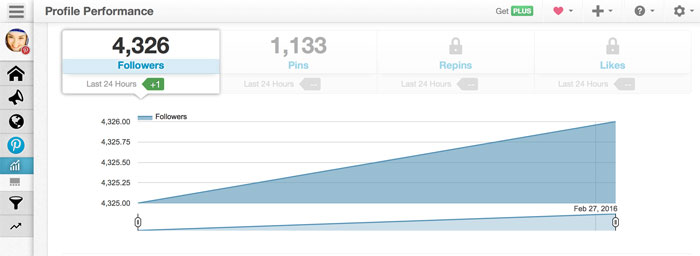
The Tailwind dashboard makes it easy to interpret your Pinterest data. It provides info about followers, likes and dislikes, and even trends of pinning habits.
best-tools-to-manage-social-media-posts-tailwind
It's all right there on the interface.
Social media professionals can use this data to learn what resonates with their audience. (from keywords, to topics, to types of images)
Once you’ve identified the influencers, the next step is to leverage their followers to promote a brand or product. This brings us to our next best tool to manage social media posts.

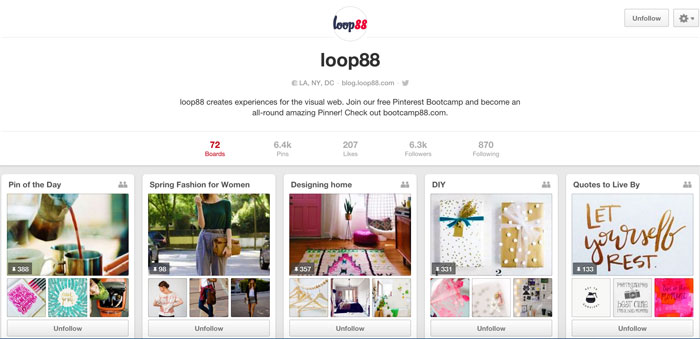
5. Loop88

Loop88 is another outstanding tool for Pinterest lovers.
The company is like a digital bridge between Pinterest influencers and brands that want to spread their message on Pinterest.
I know many social media professionals addicted to pinning. They do it with passion, care, and creativity. Of course, these same social rockstars are also bloggers.
Loop88 leverages that niche content with visually rich context and transforms it into an influence opportunity.
In other words -- on Loop88, brands collaborate with Pinterest influencers and amplify content.
It works well for brands looking to be the cool kid at a party -- but they never got an invite. Loop88 is the invite with access to the right friends and community.
But if that was all Loop88 offered, it would be just a service platform. There's much more...
They take their pinning seriously by quantifying the value of influence with data-driven metrics.
Once the parameters are set, Loop88 can also predict the likelihood of interaction on a pin. That’s taking content, context, data, influence and wrapping it all into a gorgeous UI.
Check out their interesting Pinterest case studies for inspiration. They also have a free Pinterest bootcamp going on now in case you're in the mood for some Pinterest pushups!
best-tools-to-manage-social-media-posts-loop88

6. TweetDeck

I couldn't put together a list of the best tools to manage social media posts and not include TweetDeck!
Sophisticated Twitter marketers know it's necessary to manage multiple Twitter conversations across many accounts. And in one place.
That's where TweetDeck shines!

What else is great about TweetDeck?

It’s free. It’s owned by Twitter. Ok, that might not mean much now, but at the very least, it’s backed by an authority.
Big fail on their part -- no mobile app. Don’t worry their owner isn’t amazing either. Tweetdeck is clearly influenced by Hootsuite's UI.
The scheduling and DM feature on TweetDeck is much more intuitive than on any other Twitter platform I've used.
best-tools-to-manage-social-media-posts-tweetdeck
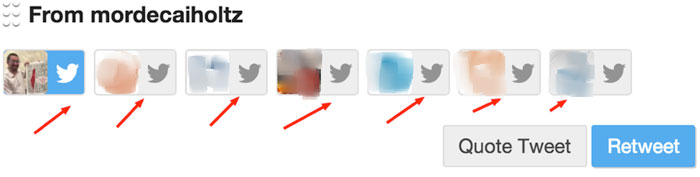
A clear advantage of Tweetdeck is its RT/ Quote RT feature.
You can retweet tweets from any of your connected accounts, unlike Hootsuite which doesn’t allow that option.
Yes, that’s a big feature to me.
Every social media pro finds content on one stream and looks for its relevance to another -- so this option on Tweetdeck is a total value add.
best-tools-to-manage-social-media-posts-tweetdeck-2
The next tool on my list of the best tools to manage social media posts is for those who love Instagram!

Before I get into this tool, I want to give you some background info to provide context.

For Instagram, the challenge is scheduling content and watching the stream in a logical manner. Latergramme is definitely the most popular tool.
You can use Latergramme to schedule posts from either the browser or your mobile iOS app (sorry Android users). With this tool, you can only upload individual images.
I used Latergramme religiously for a while -- but then these disadvantages became too inconvenient:
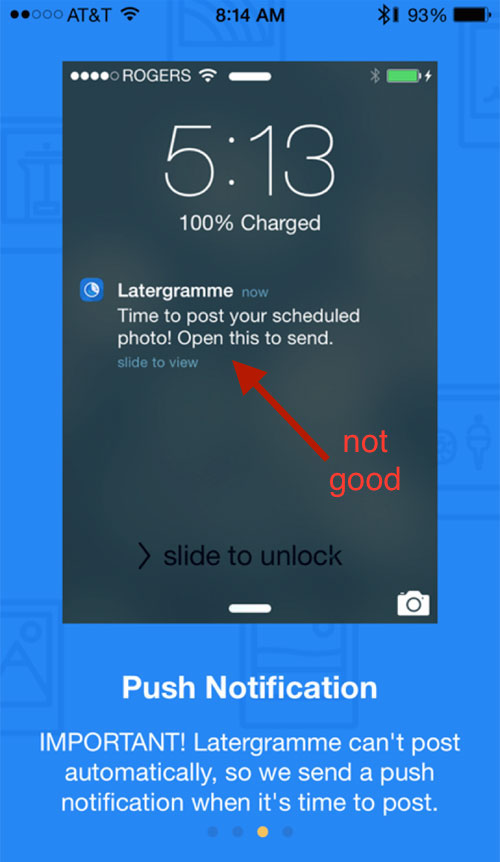
First, the posts don't post themselves
Yes, the main component of the pre-scheduling is done. But the Latergramme push notification before it posts is not an optimal solution for an automated workflow.
best-tools-to-manage-social-media-posts-latergramme-2
Next, you can't manage multiple Instagram accounts.
This is even more annoying than the posting limitation.
So I went on a hunt for a better solution. I needed something that would allow me to automate the process.

That's when I discovered the next tool on our list of best tools to manage social media posts...

7. Onlypult

Scheduling Instagram content isn’t easy because of its API.
Onlypult figured out the secret sauce. You can create (filters and words), schedule and manage Instagram content on multiple accounts.
And you can do all that from within Onlypult's easy to use web platform.
Since it's web based -- content creation is easier. You can just grab your images from whatever image creation tool you might be using.

What are Onlypult's limitations?

  • Creating new content has to be done before uploading to Onlypult. 
  • Doesn't support video
  • Doesn't offer bulk posting
  • Doesn’t allow brands to comment or engage from within their platform
But the fact that it will publish on Instagram without sending me push notifications still makes it one of the best tools to manage social media posts.
best-tools-to-manage-social-media-posts-onlypult

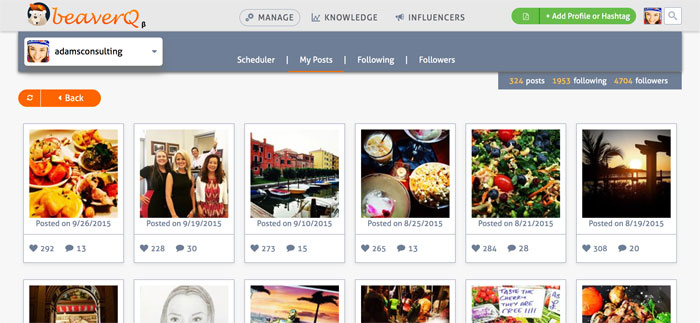
8. beaverQ

This Israeli startup is still developing some of the components of their Instagram tool, but even in its current state, it's still one of the best tools to manage your Instagram posts.
They’ve researched the challenges of existing tools and then created their own kickass, comprehensive platform.

Things I like about beaverQ:

  • I can see all of my posts in one stream
  • I can comment
  • I can research followers
  • I can filter by influencer
  • I can sort profiles for optimized content and scheduling
While Onlypult offers filters to an image, and BeaverQ offers a much more comprehensive analytics dashboard -- neither of them allow the creation of images on their platform.
I guess we have to go back to Canva within Post Planner for that. :)
best-tools-to-manage-social-media-posts-beaverq

9. Zoomph

Strategic efforts are more meaningful on social media when they can be reviewed and revised in real-time.
The deepest component of social media is real-time engagement and influencer marketing. For this, there’s no better tool than Zoomph.
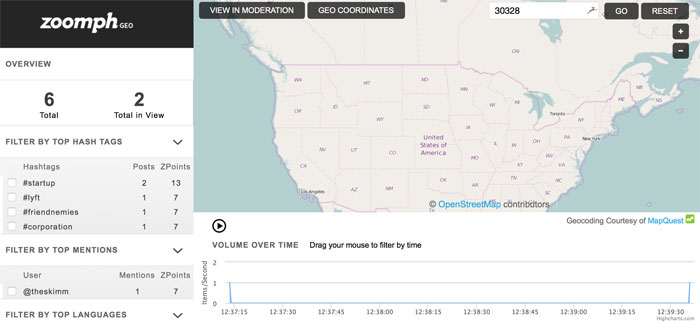
Zoomph is a new kid on the block -- but they’ve definitely done their homework. It’s a simple yet sophisticated tool for tracking, viewing, and leveraging social media data.
Zoomph pulls content from Twitter, Facebook and Instagram. It then relays real-time analytics (down to the emoji) to measure success and engagement.
Let’s use Super Bowl 50 for an example of what Zoomph can do.
It’s no secret that social media enhanced the conversation around the big game, from play-by-play to the commercials.
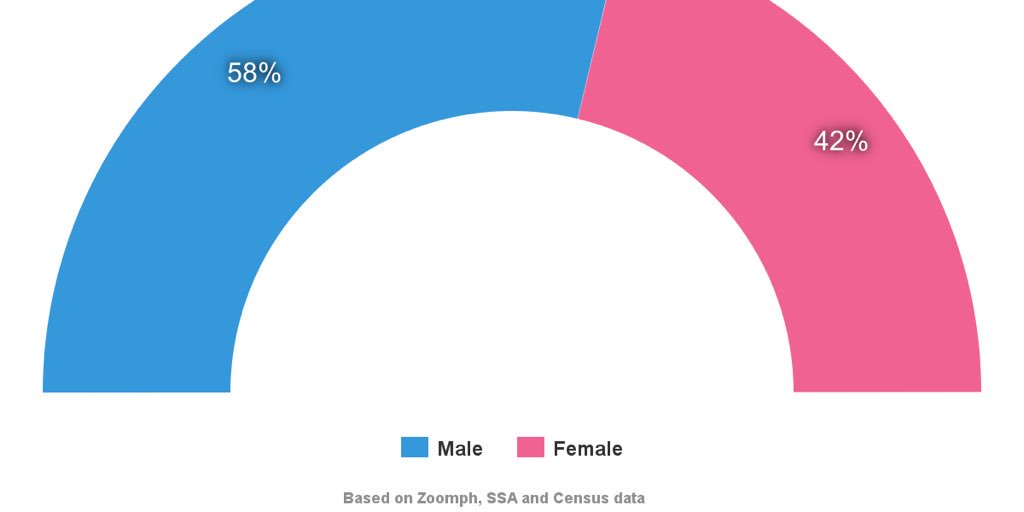
Let's say we want to know the male/female breakdown of the social media users based on a hashtag:
Think the @NFL is just men? Here's the male & female breakdown of  via @Zoomph 
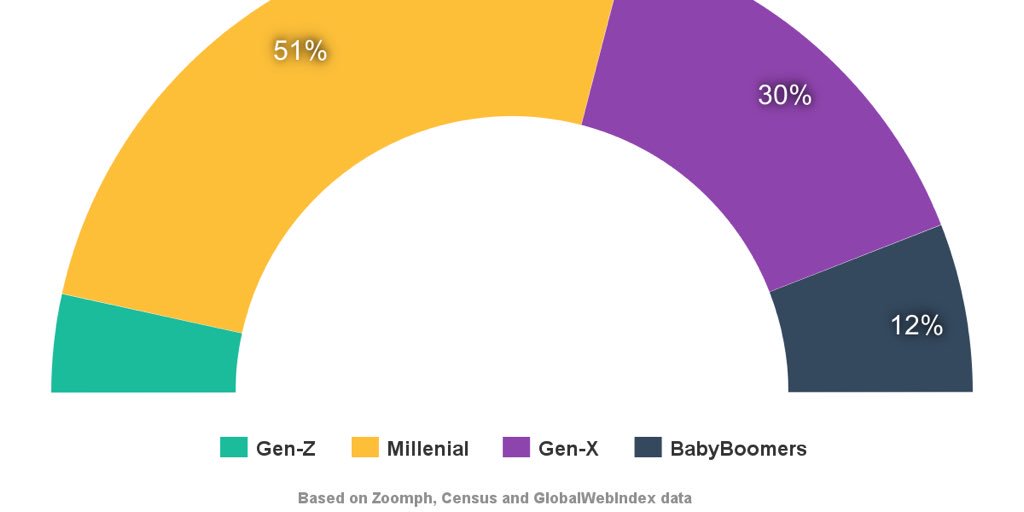
Or the dominant age group of those social media users:

Brands can capture this detailed data surrounding real-time social media content. They can then use this data for:
  • Determining parameters for their influencer marketing campaign
  • Determining which users to engage with
  • Determining the real-time success of niche content
  • Determining which users are involved in specific conversations
  • And much more
You can even filter your audience's locations by country, language, hashtag, significant terms, social network, etc.
best-tools-to-manage-social-media-posts-zoomph

What will be your challenge with Zoomph?

The set up.
With multiple dashboards and an array of useful analytics -- it’s tough to follow it all. Luckily, the customer support is excellent.

Final Thoughts

So there you have it -- a review of 9 best tools to manage social media posts.
Ultimately, the ones you decide to use will depend a lot on what your goals are -- along with some personal preferences sprinkled in.
Regardless of your industry, you probably want tools to do these things:
  • the ability to switch between platforms easily while engaging with users in a meaningful way
  • find proven, engaging content to post without spending a ton of time looking for it
  • the ability to track, analyze and tweak your strategies with easily accessible data
Doing all these things often requires a combination of tools, as Tabitha explained in the video above. She combines Hootsuite with Post Planner.
Content on social media is becoming more visual. Ephemeral content is becoming more popular. (think Snapchat)
The management tools listed in this post will help reduce the tasks involved in automation.
In the end, we all know that there’s only so far automation can go before real-time engagement is what matters most.
Which tools do you think are the best best tools to manage social media posts? Did I miss any good ones?
To view the original article Click Here