Saturday, 5 September 2015

28 WordPress Plugins That Increase Profits and Save Time

wordpress
Starting up and running a small business is not easy.
Even if you have all the knowledge and skills you need, it still takes a ton of time and effort to give the required attention to all parts of your business.
You need to create a website, get leads, convert leads into customers, create products, and so much more.
You’ll reach a point when you just can’t do it all, and that’s when you’ll need some help.
Sometimes, you can hire people. Most of the time, it’s more cost efficient and practical to see if a product can reduce your workload.
The first time you run into this is likely when you’re creating your website.
For most businesses, getting a website created from scratch is a waste of time and money. Instead of spending thousands of dollars and weeks having one created from scratch, you can use WordPress.
But as you start marketing and sales, you’ll realize that you need even more help.
This is where WordPress plugins come in.
Plugins are built to make your life easier. They make difficult tasks simple and tedious tasks automatic.
Most are free, and even if they aren’t, they’re cheap (much cheaper than hiring someone in most cases).
There’s one more challenge:
Which plugins does your business need?
The marketplace of WordPress plugins is huge, with tens of thousands plugins available.
To make your life easier, I’ll show you some of the most popular and useful plugins so you can pick the right ones for your site.
I’ve divided the plugins into 5 different sections:
  • SEO-related plugins
  • Plugins to speed up your site
  • Plugins to help you get more leads
  • Content marketing related plugins
  • Plugins to help you sell products (i.e., list products and handle payments)
Before we dig into these, I need to give you a few words of warning: plugins aretools. Although they can help you, they can also hurt you. Installing too many will have a significant impact on your security and loading speed, so only use the ones you need (aim for 10maximum). 

Make SEO simple with plugins

White-hat SEO involves a ton of manual work, so you need to automate as many of the technical aspects of SEO as you can.

1. Yoast SEO

Yoast is one of the most well-known names in the SEO and WordPress worlds. This plugin serves as an all-in-one SEO plugin that makes handling all the basic aspects of SEO simple. (Most features are free as well.)
Once installed, it’ll show up as a new menu option on the left that says “SEO.” This is where you’ll be able to navigate to the different setting areas for Yoast SEO:
image21
I won’t go through every detail here, but I’ll highlight a few parts of the plugin that often help business owners.
In the “Titles & Metas” section, you can set how titles are displayed on your posts.
The default is a long string with the sitename at the end:
Headline of post here – Site name
But if you keep this, your title will often get cut off in the search results. For example:
image11
You can use this section to change your default settings so that only your post title shows up (just take out “%%sep%% %%sitename%%”):
image32
This way, your title shows up as you originally intended, which will likely result in a better click-through rate:
image44
Another important aspect of SEO is having a sitemap, which makes it easier for search engines to index your site.
This plugin also has a sitemap section. To enable the sitemap functionality, just check the top box and save the page.
image22
Finally, another cool aspect of the plugin is its built-in tools:
image41
In particular, the bulk editor could be useful if you’re updating a large number of titles on an older site.
image37
Just type in the new title, and click “save all” beside any of the new titles.

2. Google XML sitemaps

As mentioned above, having a sitemap is a simple but necessary part of good SEO.
Your sitemap lists all your posts and pages in a format that search engine bots can easily read.
Creating a sitemap manually would be a huge waste of time, and you’d have to continually update it.
With the Google XML sitemap plugin, you generate and then submit your sitemap to Google and Bing Webmaster Tools only once. The plugin will automatically update your sitemap as you publish new content.
image15
When you click on the plugin’s settings, you’ll see a screen like the one above. Unless you have a special situation, the default settings are likely fine for you.
The sitemap URL is on the first line and is the one you should submit.
If you visit the URL yourself, it should look like this:
image03

3. WP Optimize By xTraffic

Internal links are one of the best weapons of an SEO. On an authoritative site, you can instantly rank for low-competition terms just by pointing a few internal links to a page.
I’m a big fan of relatively frequent internal linking as long as it appears natural. You can see this in many of my posts, where I link to several of my other posts:
image70
I recommend trying to do them manually whenever possible, but I also know that it’s easy to forget them.
You can use this plugin to automatically put internal links into your content by supplying keywords and phrases that you would like to associate with a particular URL.
If I wanted to create links to the Quick Sprout homepage, for example, I’d enter something like this into the plugin:
get SEO help, SEO advice, get help with your marketing, http://quicksprout.com
image53
If you choose to use this plugin, you need to be very careful.
If all you do is constantly link one- and two-word phrases (e.g., “SEO”, “WordPress”, etc.), youcan get penalized.
Always include as many three-word (or longer) phrases as possible for each URL you enter.

4. Local SEO and Business listings plugin

Anyone with a local business knows that their SEO needs to be a bit different from everyone else’s.
This plugin is an all-in-one local SEO plugin, and it’s a pretty solid one at that.
The free plan is enough for small sites, but it will be easy to see if it’s worth upgrading.
This plugin has a ton of useful features, most notably:
  • all basic local SEO settings
  • keyword rank tracking
  • competitor analysis
  • sitemap generator
  • web analytics
The main dashboard is your business information tab, where you can edit all the basic details of your business that show up on Google Maps (address, website, etc.):
image45
As you also might know, citations are a huge ranking factor for local SEO. This plugin monitors most of the popular citation websites so you can make sure that you’re covered on each of them:
image31
Finally, as I mentioned earlier, you can also track any keywords you’re trying to rank for:
image47

5. Broken link checker

All sites get broken links over time—it’s unavoidable. Content that you link to either gets shut down or incorrectly moved without your knowledge.
Having a few broken links isn’t a huge problem, but broken links are a bad thing for your readers. They get excited to click on a link and get disappointed when they see an error page. Obviously, you don’t want to routinely disappoint your readers.
This plugin regularly scans your website for broken links. In the settings panel, you specify how often it does so.
image18
If it does find a broken link, it will send you an email notification of where and which link is broken (enter your email on that settings page). You can then fix it before many people click on it.

Keep your site running fast and smoothly

Having a site that loads fast is important for a good user experience, which is important for good conversion rates.
In some tests, just a one-second delay in loading speed resulted in a 7% reduction in conversion.
In addition, keeping your site and hosting free of “digital clutter” reduces the chances of something going wrong on the site or with your hosting provider.
The following plugins will help you keep your site clean without too much effort on your part.

6. Akismet

It’s, by far, the best spam protection plugin for WordPress. It automatically catches a ridiculously high percentage of spam comments and moves them to your spam comment box before you even see them.
image13
Once you’ve installed the plugin, you’ll need to get an Akismet license.
Under “settings” in the left side menu of your dashboard, click on Akismet. Then click on “get your API key” in the main window:
image56
You’ll need a WordPress.com login to proceed (create a free one if you don’t have one already).
image39
Finally, you can choose your plan. If you choose the basic plan (enough for most sites), you can “name your price.” While you can use the plugin free, giving a few dollars for all the time and trouble it saves you is well worth it.
image54

7. W3 Total Cache

Caching is a simple principle. Instead of making someone download your entire page’s content every time they visit a page on your site, you can store a few static files in their browser.
This way, they don’t waste time re-downloading redundant data, and you don’t need to waste the bandwidth giving it to them; it’s a win-win.
That’s where it gets way too technical for me and most site owners. Luckily, there are smart people who develop plugins such as W3 Total Cache to do all the complicated stuff for you.
A warning: it’ll take you 30 minutes to an hour to set it up the first time, but it’ll be worth it in the long run.
Here’s a full guide to configuring W3 Total Cache for beginners.
On the general settings page, you’ll get a basic overview of all the different types of caching. You can enable each of them on that page:
image08
Then, you can use the left side menu to dig into that particular type of caching deeper and customize it for your site:
image51
The reason that this is so important is that it can make a huge difference in loading speed in some cases:
image69

8. EWWW Image Optimizer

One of the main causes of a bloated page size is unoptimized images.
Most images have lots of junk data that can be stripped away without affecting image quality. This plugin does it automatically.
After you install the plugin, you can manually optimize any picture by going into your media library and clicking “optimize” or “re-optimize”:
image50
For some pictures, you can reduce the file size by 80+%.
In addition, the first time you install the plugin, you probably won’t want to go through all your old images one by one, so you can use the bulk feature.
Go to “Media > Bulk Optimize”, and click the optimize button. It’ll take a few minutes to finish (depending on the number of pictures).
image16

9. BackupBuddy

For what it offers, WordPress is amazingly robust. However, it’s still susceptible to breaking on the odd occasion.
In addition, since it’s such a popular CMS, WordPress is often the target of hackers. If you do get hacked or your site breaks, it’s always nice to have a backup on hand.
As the name implies, the BackupBuddy plugin helps you make backups of your site. In addition, you can use the plugin to restore those backups with just a few clicks.
Click on the BackupBuddy option in the left side menu, and you will see a simple interface:
image17
The four big buttons at the top help you use all the main functions, and you can see any past backups you have made below.
The best time to make a backup is before you need it.

10. Captcha by BestWebSoft

As your website grows, it becomes a more visible target for spammers.
Akismet is one option, especially when it comes to comment spam, but if you want to stop spammers before they even get that far, consider this Captcha plugin.
Once enabled, it adds a simple Captcha or skill testing question (like the math problem shown below) to the areas of your site that you select.
Most commonly, it’s added to comments:
image64
In addition, if you have a site where users can register, you may want to add a Captcha to your registration and login pages:
image57
You can choose to do so by checking the boxes located at the top of the plugin’s settings:
image20

11. WP-Optimize

One thing that WordPress struggles with is bloat. Every post revision that it autosaves is another thing that needs to be stored.
Every comment, whether it was approved or put in spam, also needs to be stored.
Basically, a whole lot of crap is being stored—that you’ll never need to use or see again—that’s taking up space and slowing down your website.
If you ever go into your databases, you will see a bunch of tables that contain all your stored information (much of it is junk):
image71
This plugin goes after the worst of the worst: the redundant information that is being kept around for no reason.
You can select exactly which backup data is deleted and run the plugin manually using the button in the settings panel:
image55
In addition, you can set it to auto-run so that you don’t have to even think about it in the future.
Go to “settings” at the top of the dashboard, select how long you want to keep backup data (your post revisions, etc.), and then specify how often it should be run:
image19
And you’ll never have to think about it again.

12. Sucuri

Site security is one of the most ignored aspects of site maintenance by business owners, but you’ll wish you had some security in place if you get hacked or infected.
Sucuri is an all-in-one security plugin and will do everything most WordPress sites need.
It continuously monitors your site for malware and also has a firewall add-on.
image63
You can choose between two plans: free and paid. If your business is worth tens of thousands of dollars (as a minimum), it’s worth spending a few bucks to be protected.

Double or triple your email leads without breaking a sweat

Email marketing is by far the most effective marketing channel for most businesses.
image65
But on top of producing content and driving traffic, you also need to capture email addresses of your visitors.
These plugins will help you collect email addresses with minimal time and effort. Better yet, most of them are set up to maximize your conversion rate.

13. Content Upgrades plugin

Content upgrades are a great way to boost your conversion rate on blog posts. You can do it by offering topic-specific bonuses for each post.
If you’re going the low-cost route, this plugin is a good option. It integrates directly into your MailChimp or other major email provider account.
image06
Once you connect the plugin, you can create as many different downloads as you like:
image05
You get a shortcode that you can put in your content to create a button. When a visitor clicks it, a pop-up will appear asking for their email address. Once they provide it, the plugin will take them to the bonus page.

14. OptinMonster

Pop-ups are controversial, but they are one of the best ways to improve your conversion rates. I think that if you use them correctly, you won’t annoy your visitors too much.
OptinMonster is one of the cheapest premium pop-up options available, and it integrates right into WordPress.
image14
You can configure just about every part of the pop-up, down to when it shows up and what it looks like:
image33

15. Thrive Leads

If you’re looking for a little more powerful pop-up solution, this plugin might work for you.
In addition to the standard pop-ups, it offers other types as well:
  • Ribbons
  • Popovers
  • Widgets
  • After post
  • Slide-ins
It’s got everything you need in a pop-up plugin, including split-testing. It’s also fairly easy to customize your pop-ups:
image73

16. LeadPages

A final pop-up solution is LeadPages, which is extremely well known. It’s used by many top bloggers, and you’ve definitely seen it in action before:
image01
It is more expensive than some other options, e.g., OptinMonster. However, you also get access to more tools such as LeadPages landing page builder. This tool makes it really easy to make a quick, high-converting landing page.
image60

Get more out of your content marketing

Creating great content takes time…a lot of time.
I’ve shown you before how you can write faster and write better.
On top of those writing techniques, you can also use plugins to save time and produce better content.

17. Contact Form 7

Although this isn’t exactly a content marketing plugin, it fits better here than in any other section.
If you need a simple contact form that will reliably send you messages from your visitors (leads, media, etc.), this is a solid basic plugin.
Once installed, it’ll show up as a “Contact” menu option, where you can select “add new” to create a new form.
You can click the field buttons to add or remove form fields:
image25
Most forms will look very plain.
If you spend some time tweaking the CSS, however, you can still create fairly attractive forms with this plugin:
image00
Here’s a guide to styling Contact Form 7.
If you’re looking for a fancier option, or one with even more customization, try out Gravity Forms, which is a paid plugin. It has a wider variety of fields, and it’s a bit easier to modify it:
image52

18. TweetDis

One of the up and coming trends in content creation is interactive content.
One form of interactive content is embedded Tweets. TweetDis is a plugin that allows you to create a clickable link or button so that your visitors can easily Tweet your message or content.
It has a few different options. You can create a box tweet:
image28
Or you can create an inline Tweet so visitors can just click on existing text in your content:
image29
Within the plugin settings, you can modify several different themes to your liking.
image42
These embedded tweets increase the number of shares you get, and they also break up your content nicely.
To add one to your content, highlight the text you want your readers to tweet in the post editor, and click the TweetDis icon:
image49
From there, you pick your options in the pop-up box. It takes less than 30 seconds once you get used to it.
image61

19. Disqus

You know I’m a big fan of comments. It’s great when you get to hear from the people reading your content, so encourage it.
Disqus is a good-looking comment plugin.
image27
It has a few big pluses:
  • it prevents spam (no Captcha or Akismet needed)
  • it’s quick/easy for users once they start using it
  • you can still moderate if you need to
  • users can get notifications of replies and other responses
It’s very simple to get it running on your site. Install the plugin, and sign up for a Disqus account:
image24
The only other thing you need to do is “export comments.” You will find this function under the import and export settings of the plugin. This will make all your old comments look like Disqus-styled ones:
image10

20. Facebook comments for WordPress

Another good commenting system is Facebook comments.
Since people have to use their real accounts, there’s very little spam. In addition, users can get notifications and can like other comments right on your page.
image67
The potential downside is that people without Facebook accounts won’t comment (although that’s not very many).
Setting it up is very easy—just install the plugin. You will, however, have to obtain a free Facebook app ID.

21. AddThis

One of the ways you can measure content marketing success is through social shares.
Social shares bring traffic and make your site look more authoritative. This is one of the simplest free plugins you can use to add social sharing buttons to your website:
image26
The icon options for the free plan are fairly limited, but they’re still pretty attractive. You can choose which icon set and network buttons are displayed and where the buttons show up (e.g., sidebar, before or after content).
image30
One other nice feature of the plugin is that it does offer basic analytics data, so you can see how many shares you’ve gotten and in which networks.
image62

22. TablePress

Making an HTML table from scratch is a huge waste of time. Unless you spend a lot of time with CSS as well, it’ll look terrible.
TablePress is a good plugin to quickly create a decent-looking table. It’s often used to create comparison charts on niche sites.
image75
If you’re not technical, there’s no way you’d be able to make a sortable and filterable table. With this plugin, it only takes a minute.
Once installed, it’ll show up as a new menu option: “TablePress.” Use the options along the top or side to create a new table, or import or export a table:
image76
You can import tables right from a spreadsheet.
At any time, you can go to the “all tables” screen and click on any table you’ve created.
You can edit the cells, hide entire rows or columns, apply custom CSS, and change other table options (like filtering availability):
image58

23. CoSchedule

Part of driving traffic to your content from social media involves having a complete social media strategy.
The CoSchedule plugin lets you easily see what you have scheduled to post on social media and, obviously, schedule posts as well.
Once installed, it’ll show up as a shiny new calendar option in your WordPress dashboard:
image34
The calendar shows you every social media post you have planned for a given time period. You can edit them, copy them, and drag them around.
In addition, you can go into any post you have published and see the number of social shares it has gotten and on which networks:
image12

Take the frustration out of selling your products

Although it’s not as bad as it used to be, it can still be a pain trying to sell your products if you’re new to it.
Something that seems very simple, like putting a PayPal button on your website, is really more difficult than it should be for most people. And if you want to make it look nice, that’s even more difficult.
The following plugins will help you do everything from listing products to accepting payments.

24: eCommerce Product Catalog

This plugin helps you list products on a basic WordPress eCommerce site.
You can add a product to your site using the plugin and then display it in various parts of your site.
You can easily put together attractive product pages:
image07
You can also have a single page for each product with more information and purchasing options:
image35
You add a product just like you would add a post or page. Click the “products” menu option on the left, and then click on “add new product.”
Next, add descriptions like you would with any other WordPress text as well as product images.
image48
It’s not a premium option, but if you’re looking to get a quick little test store up and running, it’ll do nicely.

25: WooCommerce

If you’re serious about eCommerce and WordPress, WooCommerce is one of the most popular options for a reason.
You can create simple but attractive product listings and category pages for your products:
image02
The product pages look professional and on par with a lot of product pages of retailers with expensive custom sites:
image09
The biggest thing that WooCommerce offers is flexibility. You can sell any type of product (physical or digital) as well as multiple types of purchases (one-time, memberships, recurring subscriptions, etc.).
You can also set your shipping options. The plugin will tell the visitor if you ship to their location and will calculate the cost of shipping based on your settings.
image59
Finally, you can also add payment buttons for any of the major online payment processors.
As far as using the plugin, it’s fairly simple. Add your products just like you would add a new post:
image23
You can also see the number of sales you’ve made using the built-in analytics:
image43
Overall, it’s a great all-in-one eCommerce option for WordPress.

26. WordPress Simple PayPal Shopping Cart

If you run a business where you don’t sell many products, you might just need a simple PayPal button now and then.
This product will make it easy to create a decent looking purchase button that connects to PayPal.
image68
Once you’ve installed the plugin, you’ll just need to add in a shortcode wherever you want a button to show up.
image40
It’s pretty self-explanatory: give the button a “name” and a “price.”
Once your visitors click the button, the page will automatically load a shopping cart, and visitors can check out when they’re ready:
image46

27. WP Simple Pay Lite for Stripe

This plugin is similar to the PayPal one above, except that it creates a button that accepts Stripe payment.
I know that many business owners don’t fully trust PayPal, so they look to alternatives such as Stripe to accept payments.
It works the same way. Once you install the plugin, you can add a “buy” button by adding a shortcode like this:
[stripe name=”The Awesome Store” amount=”1999″ description=”The Awesome Blueprint Book”]
where the amount is the price in cents.
When your visitors click that button, they’ll see a standard Stripe form asking for payment details:
image04

28. Easy Digital Downloads

Another all-in-one eCommerce option is this plugin, but it’s set up exclusively for digital products (training, e-books, etc.).
It’s not quite as complete as WooCommerce but is probably a bit simpler for the first time seller.
You can accept payments from all the major processors (PayPal, Stripe, etc.), and the plugin will deliver your digital product once someone pays for it.
Instead of a “products” tab, you have a “downloads” section, where you can add products and see your earnings:
image72
As you’d expect, you can dig into the “payment history” to see who bought what and when they bought it:
image38
Finally, there are also a few different reports you can access. They’ll save you time because you won’t need to produce them yourself:
image36
The product listings aren’t really beautiful by default, but they’re not ugly either:
image66
Customers can see their cart at any time, apply discount codes, and check out via whichever payment method they prefer:
image74
This plugin is a nice middle ground between a simple payment button and a comprehensive eCommerce solution.

Conclusion

WordPress is a great platform to build most simple businesses on.
However, to get the most out of WordPress, you need to find a few plugins that suit your business’s needs.
I’ve highlighted 28 different plugins that cover five common areas online businesses need to attend to. It’s up to you to decide which, and how many, of them can save you time and make you more money.
There are many other good plugins I haven’t covered. If you know of any, please share your favorite plugin(s) in a comment below.
To view the original article Click Here

Three Reasons Why Paid Marketers Should Embrace the Mobile Revolution

Failing to embrace any emerging trend is a death sentence in the business world, but none more so than the mobile revolution and the paid marketer. Mobile ad revenue is expected to surpass desktop revenue by late 2015 or early 2016 according to reports published by eMarketer and Marin. This should come as no shock to anyone who has been watching the landscape of paid ads morph and change over the past few years as mobile growth, particularly the smartphone market, has exploded worldwide. According to GSMA Intelligence, there are a little over 7.55B mobile connections globally with 3.74B unique mobile subscribers
Not only are we seeing a shift of desktop spend towards mobile, but as our CEO Will Critchlow illustrated in his piece, The Future of TV and the Golden Age of Digital, we’re also seeing a shift of spend from more ‘traditional’ advertising mediums such as TV toward digital marketing channels. Mobile is big business. If you and your business want to be in the optimal position to get the largest slice of that pie you can, you need to start embracing mobile. If you haven’t already started embracing the mobile revolution, here’s a few reasons why you should change your tune.

1. One-to-one relationships

Do you share your cell phone? Neither does the majority of the rest of the world. Unless you’re a parent that is prolonging the inevitable of buying your youngster a cell phone and dreading adding yet another bill to your monthly routine, it’s very unlikely that you are sharing a mobile device across multiple users.
According to worldometers data, there are currently over 7.36B people spread across the globe. As we mentioned above, there are 3.74B unique subscribers to mobile throughout the Earth. This means that even if we include the youngsters whose parents are delaying the inescapable, over 50.8% of the world’s population has their own cell phone. This percentage jumps up even higher in countries such as the US. According toPew Research Center’s 2014 Internet Project Survey, 90% of Americans have a cell phone of some kind, with 64% of Americans owning a smartphone.
While historically conversion rates for mobile have been lower than their desktop and tablet counterparts, this is the first time in the world of marketing that we are beginning to see a one to one relationship between device and user. Radios, TVs, desktops are traditionally shared across multiple users and the same can often be said about tablets; however, with cell phones there is a one-to-one relationship that is being created.
For paid marketers, this means that our demographic, dimension, and psychographic targeting data is significantly more accurate and can be more easily trusted. This allows our targeting and retargeting efforts to be more specific and laser focused to match our market research and persona. If we combine our mobile data with desktop via cross-device tracking, we can extrapolate these more highly targeted data points back into our desktop targeting.

2. Geo-targeting

While the desktop geo experience is generally a great experience, it can be fraught with inaccuracies. For example while I still lived and worked in West Lafayette, Indiana our business class internet from the second ever two-time Golden Poo Award winning company Comcast, informed Google that we were located in the Greater Chicago area, which was roughly a two hour drive North by Northwest. This was often reflected in the ad copy I was served and that created a less than optimal search experience, specifically when the query was location sensitive.
When the city or metro provided to Google via your ISP is correct, the location is still an approximation, which forced Google to use a centroid based system when serving you nearby business locations. Effectively, a center point is assigned in each city or metro and Google would show you results based upon the assumption that you were within that centroid. This means that you are often shown businesses that are across town, even when there may be an option that fits your needs much closer to your current location. While Google has recently improved this experience for desktop users, provided you allow them to have more access to your location data, it goes without saying that desktop geo-sensitive searches and experiences have been lacking.
Mobile geo data and geo-targeting has flipped this on its head. No longer will you be served results that do not necessarily correlate to your accurate geo-position such as the image below. Instead you will be served results that are more highly targeted to your actual location, because you’ll obviously have your mobile with you when out and about.

An example of desktop vs. mobile geo-targeting:

As you can see in the images below, the selected Starbucks locations are much closer in the mobile search than in the desktop search.
Starbucks locations on a desktop search
The desktop search showing scattered locations.
Starbucks locations on a mobile search
The same search on mobile with more accurate locations.
This enhanced geo-targeting also extends to ad targeting capabilities. Previously on desktop we were limited to the geo information that was provided to Google via the ISP, which as illustrated in the aforementioned example could be significantly incorrect. This meant that we as marketers would often be serving ads to those whom were not actually in our target location, which translated into a poor user experience and less than optimal CTRs. Now we are able to more accurately target users that, based on their location, may be more highly interested in our product, service or business.
This is where the real benefit is felt. When a searcher hasn’t yet defined where they wish to take their business and are instead searching for a type of service. Image if I had been searching for coffee shops instead of Starbucks specifically, I would have been likely to choose the option that was nearest to my current location. Non-branded ads stand to gain the most from the improved geo-targeting at our fingertips.

3. Mobile Payment

Using your cell phone to complete a transaction, whether that be online or in store, is going to continue to ameliorate. To continue my borderline obsessive use of Starbucks examples, when I head to Starbucks to grab a quick coffee, I grab my keys and phone. No wallet necessary. This is due to the Starbucks app built-in payment system. I simply reload my balance with my stored credit, debit, gift card, or banking information and I’m all set to make a swift, easy, and dangerously painless payment for my morning coffee and occasional vanilla bean scone.
The Starbucks app payment experience is so painless that Starbucks reported in April of this year that 19% of all US payments were completed via the app, this has played a major role in their continued sales performance throughout recent history. From a user’s perspective, this also serves as an illustration of how a mobile payment solution should work. No clunky log-in system, no hurdles to jump through. Just a simple, easy to use payment system that facilitates a smoother transaction process for both the user and the cashier, or in this case, the barista.
There are currently many players vying to grab the lion’s share of the mobile payment market. From PayPal to Apple Pay and Google Wallet, each has their own strengths and weaknesses, and the map to success is yet to completely unfold.
There are two main avenues for transactions with these services, online or in-store. While PayPal is the most prevalent online solution, presently none of these services has a commanding foothold on either. Nonetheless, as more and more debit and credit cards are outfitted with EMV Chips, brick and mortar retailers are quickly being forced to adapt to the new security standards and upgrade their POS systems to accommodate newer technologies or face liability in the face of security breaches and fraud. These new systems will be Near Field Communication (NFC) ready and this places Apply Pay and Google Wallet, which already use this technology, in a unique position to expand their reach to more physical locations.
As mobile payment solutions become more and more prevalent in our everyday lives, the mass’s adversity to using these systems to make online purchases will lessen in kind. This will likely force online businesses to adapt to the changing trends and implement support for the mobile systems. This could mean that whomever wins the battle for the in store transactions, will win the online battle. In short, users will be looking for one solution to fit all their needs.
Winning this battle is even more important as Google is currently testing click to buy CTAs in the SERPs and Shopping results.
An example of how buying directly from Google SERPs will look.
Once Google takes notes from Amazon’s one-click ordering option, the ability to make a purchasing decision without ever leaving the SERP will exist, and this will allow for much quicker purchasing decisions for many mobile users out there. Due to their current issues with monopoly related legal battles, particularly in the UK, Google is unlikely to only support Google Wallet for their click to buy service but if users innately choose Google, they will effectively get to double dip on customers that purchase via paid ad CTAs and Google Wallet. Plus, if this stays as a mobile only option, searchers may even turn to their mobile devices instead of their desktops to make the final purchasing decision due to ease of use and security.

Embrace the Revolution

These are just a few reasons as to why you should embrace the mobile revolution, but there are countless more out there and even more that are likely yet to be discovered. By leveraging the advantages that mobile gives to us marketers, we can not only create better and more effective marketing campaigns, but we can create a better ad and web experience for our users. If and when we do that, content creators, content consumers, and marketers all win.
To view the original article Click Here

Friday, 4 September 2015

Top 10 Things You Should Never Post on Social Media

top-10-things-you-should-never-post-on-social-media
Social media has made it possible to share your thoughts and ideas with thousands of virtual strangers, literally within seconds. You barely need to have formed a cohesive thought, and BOOM! There it is, posted for the world to see.
But before you hit that ‘publish’ button, do me a favor: run through this list of the top 10 things you should never post on social media. It just may save you from causing hurt or embarrassment to yourself or others!

1. Offensive content on social media

Where do I start? There are so many types of posts that fall into this category. Racial slurs, graphic images, crude jokes, swearing (except in the rare event this is an integral part of your brand), to name just a few.
Some business owners don’t think it’s a big deal to occasionally post a distasteful joke or questionable picture; I strongly disagree. This lack of awareness and respect can cause irreparable harm to your brand. When in doubt, leave it out!

2. Gossip or attacks against specific people

If you’ve been hurt or harmed in some way, you may feel justified in lashing out on social media. However, there are two big problems with this: First, when you specifically call someone out in such a public venue, you often leave that relationship in a state of disrepair. It’s pretty hard to recover from that type of attack! Second, this type of public shaming often says more about you than the person you’re talking about. It sends the message that you don’t respect others, and may damage the trust your audience has in you (“Why should I trust you when I see how easily you can turn on others?”).

3. Claiming other people’s content as your own

Any time you use someone else’s content without attribution – images, quotes, or original ideas – you run some pretty serious risks. Remember that copyright infringement is a serious offence that can lead to legal action, and that can do serious damage to your brand. While you may get away with it in the short term, it’s just not worth it!

4. Speaking negatively about an employee/boss/co-worker

Social media isn’t the place to air grievances against employees or co-workers. It also isn’t the place to give specific details about mistakes your employees have made, or about how insufferable your boss is. Sharing this type of content on social media is not only unprofessional, in rare circumstances it can be grounds for legal action.

5. Sharing specifics about an upcoming holiday or business trip

Sharing images or videos from a trip is great for helping your followers feel like they’re in on the action. The trouble is, you don’t know exactly who’s listening in! Avoid mentioning specific details about your trip (dates, locations, etc.). Better yet, share pictures once you’re back!

6. Private conversations (without permission)

Have you ever received an email or private message from a follower that you couldn’t wait to share with your audience? Maybe it was an awesome tip or trick, or maybe it was a shining testimonial about your product? It’s always a good idea to ask for permission before sharing this type of content on social media. If you’re going to be sharing a screenshot or any identifying information, you DEFINITELY need to get written permission first!

7. Too much personal information

You know I talk a lot about being yourself on social media. This mean being authentic, and letting your followers see the real YOU. This doesn’t mean, however, that you should let it all ‘hang out’! Make sure you have a good balance of informative, industry-specific content, mixed with some personal tidbits to let your followers know you’re a REAL person!

8. Financial information

Obviously, you never want to share sensitive financial information like your bank account or credit card numbers (!). But I also discourage business owners from sharing info like financial projections, quotas or earnings. While this can be acceptable in certain industries (e.g., online marketers often share monthly income reports), this isn’t the norm in most industries.

9. Sharing posts or links that aren’t substantiated

Before sharing a post or article that could be controversial or sensational, always be sure to do your homework. Sharing posts that end up being scams (or that are simply inaccurate) can send the message that you’re naïve or that you don’t care enough to fact-check. And it goes without saying: before sharing ANY link, be sure to click on it yourself first!

10. Anything you don’t want to be online FOREVER

When you put something on social media, you have to assume it’s out there permanently. In the age of screenshots, there is no ‘taking it back’, even if you’ve made a big mistake. Before you post anything remotely personal or sensitive, ask yourself, “Do I want this to be online forever?” If the answer is no, don’t hit the ‘post’ button!
What would you add to this list? What do you think should never be posted on social media? Share below!
To view the original article Click Here

4 Reasons Your PPC Spying Tool Needs to Monitor Competitor Sales Funnels

Do you use competitive intelligence data to spy on your competition?
Competitive spying tools allow you to quickly evaluate which keywords, ads and landing pages your competitor is using but let's take it one step further. In order to dominate the market, you need to focus on differentiating your product or service. How can you separate yourself if you don't know what the competition is offering?
Most PPC managers use AdWords' Keyword Suggestion tool to evaluate keyword opportunity and study the trends. You can also use AdWords Auction Insights to see who else is buying the same keywords. The problem is, unless you manually search each keyword and click on a competitor's ad, you don't experience the true funnel that someone goes through when searching your keywords.
For example, mobile search funnel optimization is a huge, growing opportunity. Mobile SERPs are the battle ground and will soon be how the majority of users come to your website. So what have you done to optimize your mobile user experience? Have you closely compared your keyword funnel to that of your top competitor? If yes, which keyword? Did you evaluate a brand keyword, non-brand or a competitor brand keyword? I'm going to explain why you need to do this, how to do it, and which tool I use to save time, gain insights, and take action.
ppc-spying-tool4

Reason 1: User Experience and Conversion Optimization 

By looking at keywords, ads, and landing pages in silos, you miss the true experience of someone in your search funnel.
ppc-spying-tool1Many PPC search marketers start with keywords and evaluate the SERP results. If someone searches that keyword, you only have two or three seconds to differentiate your ad. Most PPC mangers spend a lot of time testing and optimizing ad creative, but the most important competitive data can be found on your competitors' landing pages.
In order to put yourself in the customer's shoes, you must search the keyword, read the ads available, and see who sticks out. What are competitors offering? How can you write better ads?
ppc-spying-tool2
Make sure you click through to the landing page, and study competitor messaging and offers compared to yours.

Reason 2: Find Opportunities or Threats

Are there any opportunities or market threats you should be acting on? What are your competitors' sales funnels, especially the landing page messaging?
Use this competitive data to jump on opportunities, versus just relying on keywords and ads. How would you rate their user experience, continuity and most importantly how does my UVP, unique value proposition compare? This UVP speaks to the question I may have and provides social proof with more than 20,000 businesses.

ppc-spying-tool3

Reason 3: Don't Get Blindsided by Competitor Promotions

Tools that only give you research and analysis are great, but monitoring and alerts are a must for competitive industries. Alerts should be set up to notify you when a competitor changes ads or landing page offers so you can continue to re-invent, and stay fresh, optimized and high-converting.

Lesson #4: Learn from Larger Advertisers

I previously wrote about how to use keyword research to find new landing page ideas. Now, do the same thing, but evaluate the optimization that has been done on the entire funnel to improve your results. My company iSpionage's tool shows you the entire keyword, ad and landing page sales funnel. Seeing the clear winners these advertisers have found can be applied to your campaign, as well.
ppc-spying-tool5

What Did You Learn?

I hope you see the importance of monitoring the competition entire sales funnel from this post. Don't forget to read about the five PPC spying strategies you can use to generate more profit for more tips and strategies to make you successful. Please share your thoughts and comments below.
To view the original article Click Here

Thursday, 3 September 2015

9 Social Media Hacks Every Small Business Can Benefit From

Are you currently using social media sites to enhance your business’s online strategy? Posting to these platforms on a regular basis is a great place to start. If you want to increase sales, brand awareness, and website traffic, you’ll have to up your social marketing game by going a bit further.
These nine social media marketing hacks will help you:
  • Sell products on your social sites
  • Find enticing images to grow your brand awareness
  • Drive more traffic to your brand’s website and blog
Hacks to help sell products on social sites
Your website shouldn’t be the only place for customers to browse and buy your products. Remember that your social sites can also serve as mini, digital storefronts too.
Why not entice your social audiences to make a purchase in 140 characters or less for example.  When it comes to selling items on your social sites, you have a few options.
1. Turn to Facebook ads
Facebook has an easy-to-use advertising platform, which allows you to showcase your product to an audience of your choosing. To maximize your views, be sure to target your ad by location, age or interests.
In terms of cost, the ads are affordable. You can start an ad campaign for as little as five bucks, with the idea of progressive spending as you focus on reaching more customers over time.
  • See it in action: Here’s an example of a Facebook ad.
9 Social Media Hacks Every Small Business Can Benefit From
2. Use a ‘shoppable’ app like Shoppost
This handy resource creates ads for your Facebook page. The ads can display an image and also provide pricing, colors, and sizes. When a customer clicks on the ad, he or she is taken directly to your site to check out.
Keep in mind, your website must use Shopify, Etsy, Amazon or Bigcommerce as its e-commerce platform for this tool to work, but it makes buying simple for your customers.
You can check out the site to see the ads.
3. Try a ‘Like2Buy’ button to increase sales
Ready to turn the great images you share on Instagram into transactional posts? Use Curalate’sLike2Buy option. Customers can see your products and, like the Shoppost app, are directed to your website to make a purchase. Users can even save products in their own gallery to purchase later.
  • See it in action: Target uses the Like2Buy tool. Take a look at TargetStyle on Instagram. By clicking on any one of the products, you’re taken to the Target site to make a purchase.
Hacks to help you find and post eye-catching images
Social media is propelled by images. With so many images in social streams, you can’t post any old picture and expect viewers to pay attention. To beat the competition, you have to upload creative and clear images. So how do you get your hands on images that attract attention and spark engagement? Here are a few hacks to help:
4. Consider using paid stock sites
You can buy images on stock photo sites like iStock or Shutterstock. Set up a folder on your laptop and keep the images in an accessible folder so you can build a photo library.
Using stock photos is probably the most common way to obtain creative images, but it can be costly.
5. Browse free stock sites
If you don’t have a budget for pictures, turn to Flickr. Through their Creative Commons section, you can search images that are free. However, you’ll want to narrow your search depending on how you plan to use the image.
For example, if you plan to use the image for a commercial purpose, search under “commercial use allowed.” Just go to the creative commons section and use the drop menu on the upper left side to narrow your search. Here’s what you’ll see:
9 Social Media Hacks Every Small Business Can Benefit From
While the images are free, when you post it on your site you need to provide attribution.
6. Standout by creating a cinemagraph
Everyone is vying for visual attention, so how can you stand out? Try creating and posting a cinemagraph. What’s a cinemagraph? It’s a still image with a small section of animation. It’s like a GIF, but with better quality and control.
Since Facebook has an autoplay video feature and Instagram can play videos on a loop, these mini-moving images are powerful and attention grabbing. You can create cinemagraphs by using apps like Cinemagr.am or Flixel.
  • See it in action: Coca-Cola posted this cinemagraph to its Tumblr page.
Hacks to use social media marketing to increase website traffic
Your website and social media networks should work well together. To accomplish this, you’ll want to shuttle traffic between the two sites. In other words, links on your social sites should direct people to your website, and links on your website should bring customers to your social sites.
What’s the best way to keep this digital highway flowing?
7. Install ‘ClickToTweet’
This free tool puts a small ‘Click to Tweet’ link next to any piece of text, which allows your customers to then share that selected text on their Twitter feed.
How can you incorporate it? You could put together a list of frequently asked questions on your website, or a short list of statistics that customers can share. The ‘Click to Tweet’ link can sit next to any valuable tidbit of information. When clicked, the sentence automatically loads to Twitter. All the customer has to do is click ‘share’, and it hits the Twittersphere.
Check out the ClickToTweet website to set it up. If you’re using WordPress, you can use a specificplugin to seamlessly add the ClickToTweet feature.
  • See it in action: A healthcare website wrapped up a blog post with these statistics and used the ‘Click to Tweet’ link after each one.
9 Social Media Hacks Every Small Business Can Benefit From
8. Increase social traffic with a ‘Hello Bar’
Create a call to action button on the top of your website that drives traffic to your social sites. A Hello Bar is a thin bar that appears at the top of your website that contains a short message and a call to action.
The best part about a Hello Bar is its versatility. You can change the call to action and the message to achieve a variety of goals. You can encourage people to visit your social sites, sign up for your email list, download an e-book or visit a specific page on your website.
Visit the Hello Bar website to learn more.
  • See it in action: Here’s what a Hello Bar looks like:
9 Social Media Hacks Every Small Business Can Benefit From
9. Use Colibri.io to ‘listen’ on social media
What are people saying about your business? It’s impossible to monitor every comment made, butColibri.io makes it easier. This platform collects data across social media sites and shows you exactly what people are saying about your business, industry as well as your competitors.
With this information, you can insert yourself into the conversation. You’ll be able to offer help to customers that are unhappy with a competitor’s service, drive traffic to your website, and maintain your overall online reputation. 
Final thoughts
These nine hacks will help improve your sales and customer engagement; however, you don’t have to implement all of these changes at once. Try to set up a new tool every month so you can learn how each one fits best with your digital brand.
To view the original article Click Here

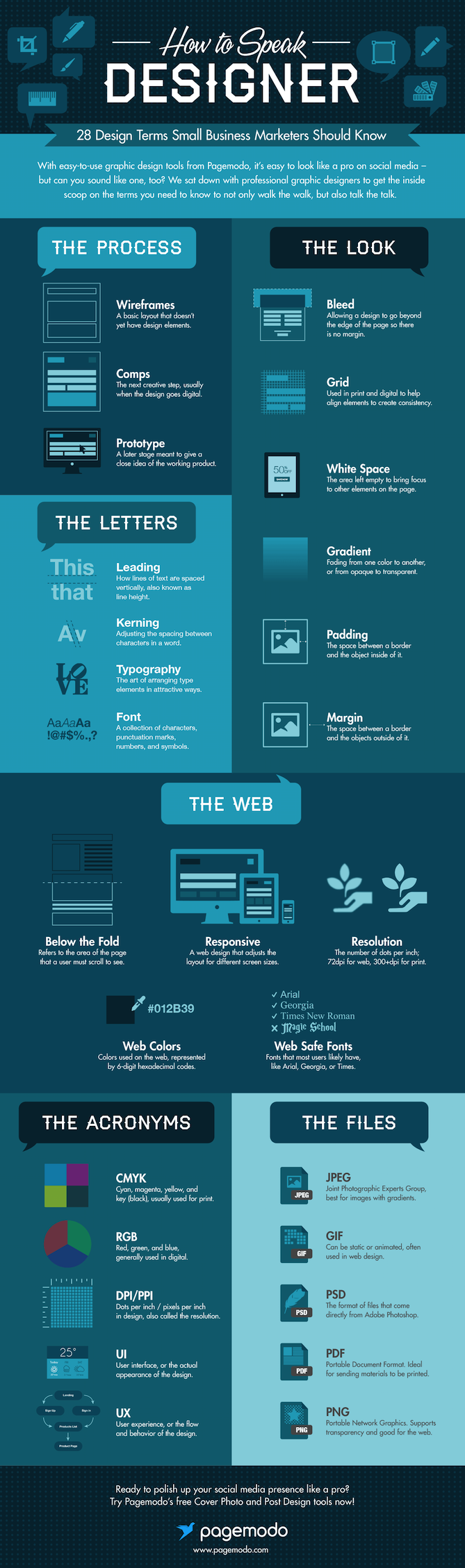
28 Graphic Design Terms Every Marketer Should Know [Infographic]

"Could you take a look at the wireframe and let me know if I need to adjust the leading and the kerning so there's enough white space? Thanks!"
... Come again?
Sometimes, designer-speak can seem like gibberish. But marketers work so closely with designers on things like website design, infographics, and other visual content, it's important that we speak and understand one another's language.
To help bridge the translation gap, the folks at Pagemodo sat down with professional graphic designers to come up with a list of the most important design terms marketers should know.Check out their list in the infographic below -- and if you have terms to add, let us know in the comments section.
To view the original article Click Here